How to Connect to a Drupal Forge Development Environment with SSH
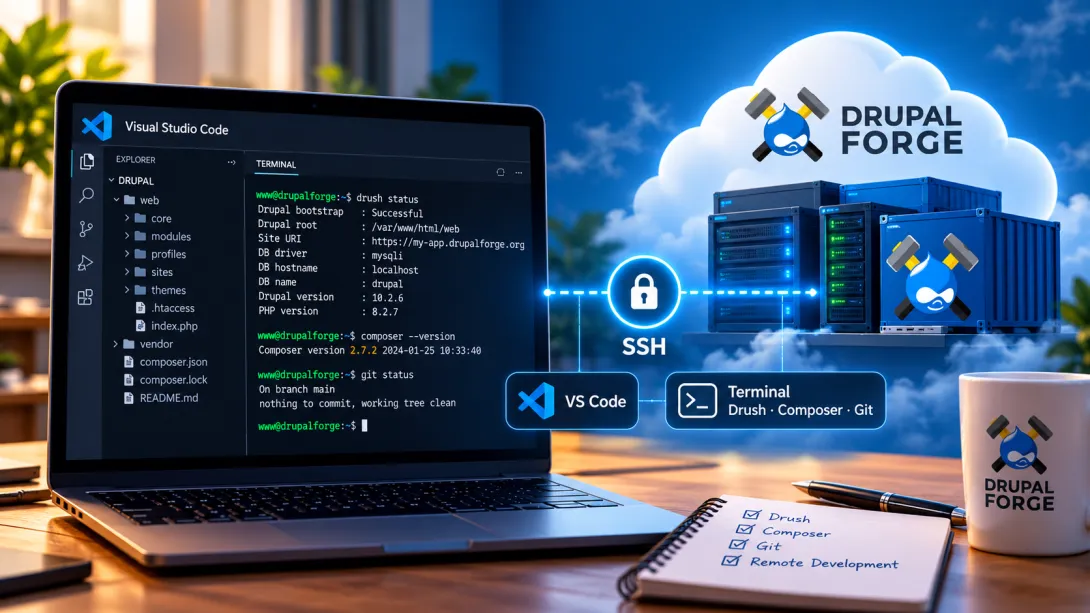
Combine the convenience of cloud-based Drupal development with the power of your favorite local development tools using SSH tunneling.
One of the biggest advantages of DrupalForge is how quickly you can get started with Drupal. Instead of spending hours installing PHP, configuring a database, setting up Composer, and preparing a local development environment, you can launch a ready-to-use Drupal application in seconds.
DrupalForge provides a browser-based development environment complete with an integrated code editor and terminal, allowing you to start building immediately. But what if you prefer working from your own terminal? What if you want to connect your locally installed Visual Studio Code to your DrupalForge environment, or execute Drush, Composer, and Git commands directly from your local shell without switching browser tabs?
SSH tunneling makes these hybrid workflows possible. In this guide, we explore how to configure SSH access to a DrupalForge development environment using two approaches:
ngrok: Create an SSH tunnel using a managed tunneling service.
Reverse SSH tunneling: Connect through a publicly accessible SSH server that you control.
We will also cover how these configurations enhance your development workflow along with the essential security considerations to keep in mind.
1. Why Use SSH With DrupalForge?
DrupalForge simplifies development by provisioning complete cloud environments. When you launch an application, the container includes the necessary runtime services and command-line utilities. For many developers, the browser-based IDE provides everything needed.
However, experienced developers often maintain refined local workflows with custom shell aliases, terminal emulators, and local IDE setups. Establishing SSH access bridges these two environments:
Use your local terminal: Execute commands directly from your workstation while operating inside your cloud-hosted container.
Run Drush and Composer remotely: Manage configuration exports, rebuild caches (
drush cr), and install dependencies without switching to the browser.Connect modern development tools: Integrate tools like VS Code Remote - SSH to edit files directly on the server.
Create workflow shortcuts: Run remote scripts and routine commands through local bash aliases and shell automation.
Maintain parity: Keep the runtime, database, and system packages isolated in the cloud while working within your preferred workstation interface.
2. Understanding SSH Tunneling
Typically, establishing an SSH connection requires an open inbound network port and an accessible public IP address or hostname:
ssh username@example.com
Because DrupalForge development environments run inside isolated cloud containers within private network architecture, individual containers do not expose public inbound SSH ports. A traditional direct connection will not route through.
What is Reverse SSH Tunneling?
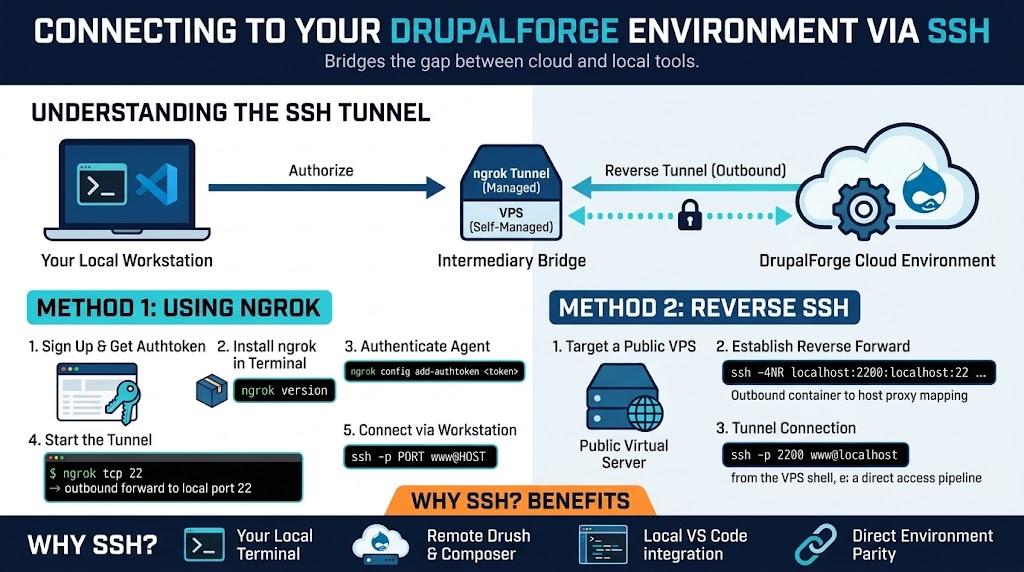
Reverse tunneling resolves this constraint by initiating an outbound connection from the development container to an intermediary server or service. That intermediary then routes authorized incoming traffic back through the established pipeline.
The connection path follows this route:
Your Local Workstation → Intermediary SSH Tunnel → DrupalForge Container
By originating the connection from within the container, you bypass incoming network restrictions without exposing the container's ports directly to the open internet.
3. Preparing Your DrupalForge Environment for SSH
Before establishing a tunnel, ensure an SSH service is active and properly authenticated inside your DrupalForge development environment.
Note: These steps assume your container environment allows OpenSSH server configuration and grants administrative privileges.
Step 1: Open the In-Browser Terminal
Launch your target application in DrupalForge and access the integrated web terminal.
Step 2: Configure and Start OpenSSH
Open the SSH daemon configuration file:
sudo nano /etc/ssh/sshd_config
Locate the port directive. If it is commented out (#Port 22), uncomment it:
Port 22
Save the changes and restart the SSH service:
sudo service ssh restart
Step 3: Configure SSH Key Authentication
Public-key authentication avoids using passwords over forwarded tunnels. If you do not have an existing key pair on your local computer, generate one using the ed25519 algorithm:
ssh-keygen -t ed25519
Keep the private key on your workstation. Copy the contents of your public key (~/.ssh/id_ed25519.pub), switch to the DrupalForge terminal, and configure the target account (typically the www user):
mkdir -m 700 ~/.ssh
nano ~/.ssh/authorized_keys
Paste your public key into the file, save it, and verify that the file permissions are restricted:
chmod 700 ~/.ssh
chmod 600 ~/.ssh/authorized_keys
4. Method One: Connect Using ngrok
ngrok creates secure tunnels to internal networks using an agent installed inside your environment. We can use it to forward external TCP connections directly to local port 22.
Step 1: Obtain Your ngrok Account Credentials
Sign up or log in to your ngrok dashboard and confirm that your account supports TCP endpoints. Copy your personal authtoken.
Step 2: Install ngrok in DrupalForge
From your DrupalForge terminal, install the ngrok Linux package according to the official documentation, then verify the installation:
ngrok version
Step 3: Authenticate the Agent
Add your authentication token to the ngrok configuration:
ngrok config add-authtoken YOUR_AUTH_TOKEN
Security Warning: Authentication tokens are sensitive secrets. Never commit tokens to Git repositories, include them in public screenshots, or expose them in shared configuration files.
Step 4: Launch the TCP Tunnel
Initiate a TCP tunnel forwarding to the local SSH port:
ngrok tcp 22
Once connected, the ngrok terminal UI displays an allocated forwarding endpoint (for example, tcp://0.tcp.ngrok.io:12345).

Step 5: Connect From Your Local Terminal
On your local computer, run the SSH command using the assigned ngrok hostname and custom port:
ssh -p YOUR_PORT www@YOUR_NGROK_HOST
Once authenticated via your SSH key, you have full remote command-line access to the DrupalForge container:
drush status
drush cr
composer --version
5. Method Two: Connect Through Your Own SSH Server
If you prefer not to use third-party tunneling utilities, you can establish a reverse SSH tunnel using any external Linux VPS or cloud server you manage.
How It Works
The DrupalForge container initiates an outbound SSH session to your intermediary server.
The connection specifies a reverse port forward (binding a remote port on the server back to container port 22).
You SSH into your intermediary server and connect into the forwarded loopback port to reach DrupalForge.
Step 1: Intermediary Server Prerequisites
A publicly reachable server running OpenSSH.
An active user account with permission to open forwarded ports.
SSH public keys configured between DrupalForge and your server.
Step 2: Establish the Reverse Tunnel
Run the reverse forwarding command from your DrupalForge browser terminal:
ssh -4NR localhost:2200:localhost:22 account@example.com
This command routes any connections hitting port 2200 on example.com directly into port 22 of your DrupalForge container. Binding to localhost keeps the port accessible only from the intermediary server itself.
Step 3: Access the Environment
From your local machine, connect to your intermediary server:
ssh account@example.com
From the shell session on that server, connect to the forwarded port:
ssh -p 2200 www@localhost
6. Using VS Code With Your Remote Drupal Environment
Configuring SSH access allows you to treat your remote DrupalForge container as a local development target using the Visual Studio Code Remote - SSH extension.
Recommended Workflow
Install the Remote - SSH extension from the VS Code Marketplace.
Add your ngrok or intermediary host configuration into your local
~/.ssh/configfile:
Host drupalforge-dev
    HostName YOUR_NGROK_HOST
    Port YOUR_PORT
    User www
    IdentityFile ~/.ssh/id_ed25519
Open the VS Code Command Palette (
Ctrl+Shift+P/Cmd+Shift+P) and select Remote-SSH: Connect to Host... →drupalforge-dev.Once connected, open the Drupal web root directory (such as
/var/www/html).
Your local VS Code manages editor extensions, IntelliSense, Git tracking, and linting, while DrupalForge provides the PHP runtime, MariaDB instance, and server dependencies.
7. Security Best Practices for Remote Development
Opening external channels into development containers requires proper operational hygiene:
Enforce Key-Based Authentication: Always disable password authentication in
sshd_configand rely exclusively on Ed25519 or high-bit RSA keys.Guard Service Tokens: Never share ngrok authentication tokens in code repositories, client-side files, or screenshots.
Bind to Loopback Interfaces: When utilizing reverse tunnels, bind forwarded ports to
localhost(127.0.0.1) on intermediary servers to prevent exposing open ports to the broader internet.Isolate Sensitive Data: Tunneling techniques are intended for development, testing, and sandbox environments. Avoid tunneling into systems that hold production secrets or sensitive customer information.
Plan for Container Ephemerality: Cloud containers are temporary. System package changes, custom daemons, or modified files outside persistent volumes may reset upon container rebuilds or environment restarts.
8. Summary Comparison: Choosing Your Approach
| Criteria | ngrok Managed Tunneling | Self-Hosted Reverse SSH |
|---|---|---|
| Infrastructure Requirement | Third-party ngrok account | Dedicated public VPS / server |
| Configuration Speed | Fast (requires agent binary & token) | Requires managing external SSH daemon settings |
| Connection Permanence | Subject to ngrok session limits / plan rules | Persistent as long as the SSH process runs |
| Ideal Use Case | Quick inspection, temporary debugging | Continuous workflows & owned infrastructure |
9. Elevating Your Development Workflow
Cloud environments and local development utilities do not need to exist in silos. Decoupling application execution from your editing environment gives you the best of both worlds: immediate access to preconfigured Drupal environments without sacrificing the speed and customization of your local editor.
Whether you choose managed tunneling with ngrok or route traffic through your own server, SSH connectivity bridges the gap between cloud hosting and developer productivity.
Ready to start building?
Launch a Drupal development environment on DrupalForge
Credits and Acknowledgments
This guide is based on the original technical work and research of Darren Oh, co-founder of DrupalForge. Special thanks to Darren for testing and documenting the foundational SSH tunneling workflows described here. Terminal assets courtesy of Darren Oh.
Reference: SSH to Your Drupal Forge Development Environment — Darren Oh