Easy, Fast, and Free!
Launch sites in < 5 seconds!
Demo, Develop, and Deploy.
Share recipes and templates.
Free for 30 days.
Driesnote Chicago
Try out the Driesnote demo from DrupalCon Chicago 2026. You must follow the steps to add an OpenAI key and an Anthropic key to run this demo. Get help at #drupalforge.
Add your API keys
This template ships with the OPENAI_KEY and ANTHROPIC_API_KEY configured as environment variables, but your DrupalForge container will not have these set. You have two options:
Option 1 — Set the environment variables in DevPanel (recommended)
Follow the same steps used in the Vienna Driesnote template, which includes a video walkthrough:
- Launch the demo app on this page.
- If you are not logged in, save the app.
- Press the Manage button. This takes you to the main branch of your project in DevPanel.
- Open the Secret Manager tab in your project's horizontal tab bar.
- Add an
OPENAI_KEYfield and paste in a secret key from the OpenAI API. Submit and return to the main branch of your project. - Repeat the previous step for
ANTHROPIC_API_KEY, pasting in a secret key from the Anthropic API. - Open the Configuration tab in the left side bar.
- Press the Apply Configuration button. When the configuration update is complete, the app is ready.
Option 2 — Store the keys directly in the Key module (easier)
If Option 1 feels complicated, you can bypass the environment variables entirely and store the keys as config values in Drupal's Key module:
- Log in to the Drupal site (default credentials are
admin/admin). - Go to Configuration → System → Keys (
/admin/config/system/keys). - Edit the OpenAI key. Change Key provider from Environment to Configuration, paste in your OpenAI API key, and save.
- Edit the Anthropic key and do the same with your Anthropic API key.
⚠️ Security note: Storing keys as configuration means anyone who can log in to the site can read them. The default admin credentials on DrupalForge are admin / admin. If you use this method, either change the admin password to something secure, delete the keys when you are done, or delete the DrupalForge container after the demo.
Steps to recreate the demo:
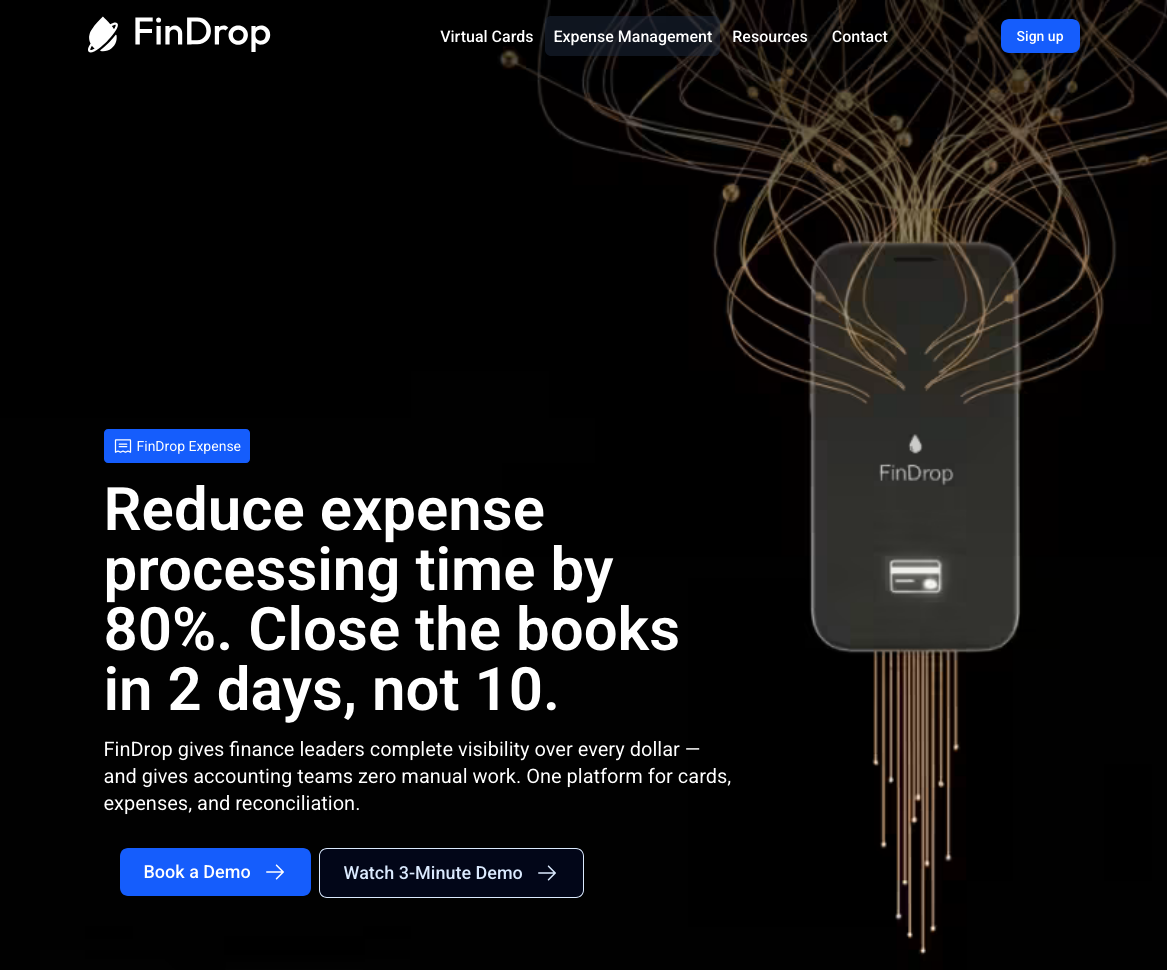
Create the product page from the copy deck — Open Canvas AI and prompt:
"Here's the copy for the new FinDrop product page — create this product page from the copy below"
Paste the contents of travel-page-text-only-v2.md.
Provide audience + goal context when Canvas asks:
"Audience is Travel Managers. Goal is to get whitepaper downloads."
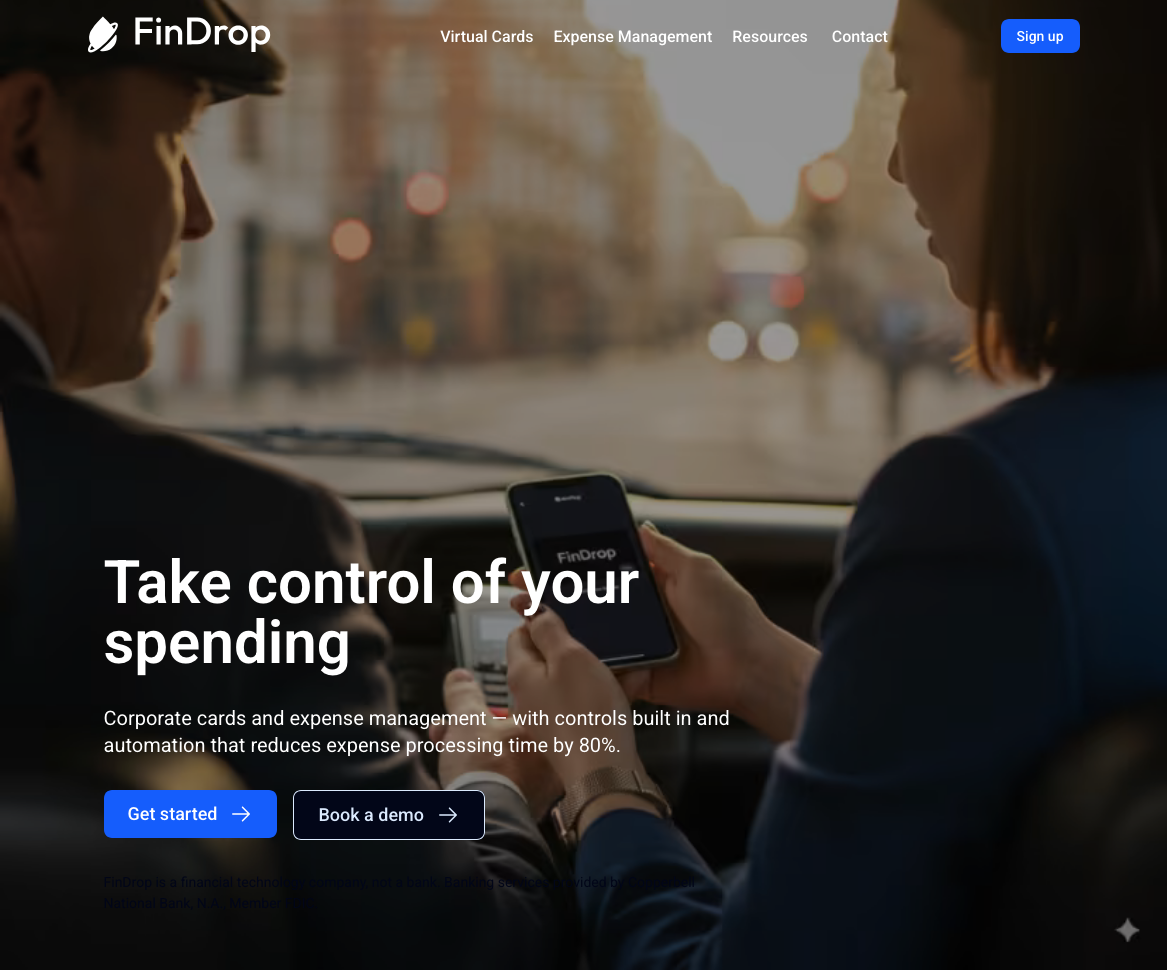
Swap the hero image — prompt:
"Switch the hero to photography with Cindy Liu."
Generate an FAQ block — prompt:
"Use the content in section 'Learn How We Make Travel Expense Management Easy' to write a new FAQ block above the CTA. Use the current content and rewrite the heading as questions."
Add internal cross-links — prompt:
"Review the page and add internal cross links."
Generate AEO schema — prompt:
"Create an AEO schema for this page."
- Start a new session (refresh the browser to simulate time passing).
Trigger the performance agent — prompt:
"This page is underperforming against its Google Analytics goals. Not performing to bounce threshold. Review the page layout and provide suggestions to improve the failing metric(s)."
Edit the CTA — prompt:
"Edit the CTA Title to 'Go live in 10 business days, not 6+ months like with SAQ'."
Pre-publish review — prompt:
"Please review before I publish live."
Reference material:
- Full prompt script: website_copy/driesnote-prompts.md
- Alternate copy decks: product-page-findrop-cards-v2.md, product-page-findrop-expense-v2.md, travel-page-with-strategy-specs-v2.md
- Brand + content context: FinDrop Brand Guidelines.md, FinDrop Key Facts & Value Propositions.md
- Full test-scenario walkthroughs: test_scenarios/